Create and personalise a gift
Pick your colors, add a note and set the deadline.
3 min readThree details to choose first
- Who it is for“A birthday for Maya”
- How it looksA color mood and opening preview
- When it closesA date and its timezone
In this article
Starting your video is free. You pay when you’re ready to make the finished video.
Set it up
- Open Start my video — free.
- Enter a gift title and the name of the person or people it is for.
- Choose Birthday, Wedding, Farewell, Retirement or Other.
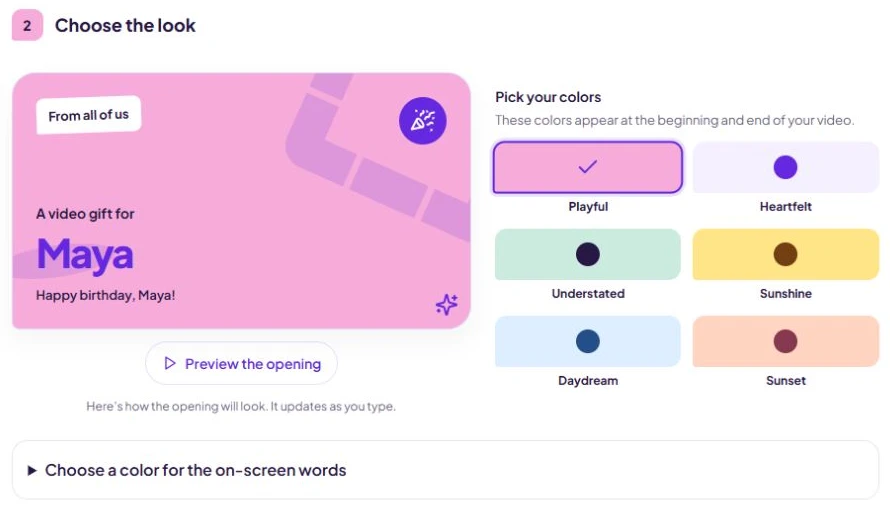
- Use Pick your colors to choose a look and preview the opening beside it.
- Enter an email address you can access. Your private organizer link and finished-video notice go here.
- Choose the last day for messages and check its timezone.
- Select Start my video — free.
Pick your colors
| Look | Colors |
|---|---|
| Playful | Pink and purple |
| Heartfelt | Pale lavender and purple |
| Understated | Mint and deep purple |
| Sunshine | Yellow and warm brown |
| Daydream | Pale blue and deeper blue |
| Sunset | Peach and berry |
These colors appear at the beginning and end of your video. The preview updates as you type. Choose Preview the opening to watch it, or Replay to see it again.
Set the deadline in the right timezone
Choose a date within the next 30 days. Messages close at the end of that date in the selected timezone. FromUs initially detects your device's timezone; change it if you are organizing for somewhere else. Daylight saving is handled automatically.
Check the displayed closing time before creating the gift. The deadline is when people must finish submitting their messages, so leave time before the celebration to review the messages and make the video.
Before payment or video-making begins, the person who started the gift can use Give guests more time on the dashboard to extend the closing day, including after the original deadline. Choose the new day and timezone, then review the displayed closing time before selecting Extend deadline. An extension must still fall within 30 days of the gift's creation and does not keep files for longer or reopen a finished gift.
Add notes for your guests and for yourself
You can add these details while creating the gift. Personal and workplace examples are suggestions; switching between personal and work keeps anything you have typed. To edit them later, open Organize the group on the your private video page, then Edit invitation and your notes. You can add:
- What would you like everyone to say?, shown to anyone with the invitation link.
- Who do you plan to share it with?, so contributors understand the intended audience before sending a message.
- Your message at the end, a short message of up to 160 characters shown at the end of the video. Keep it separate from the note telling guests what to say.
- An optional occasion date.
- Notes just for you, visible only to the person who created the gift.
Your answer to Who do you plan to share it with? helps guests decide what to say. It does not restrict who can open the gift, and invitation and watch links can be forwarded. Do not put private information in notes for guests or in the message shown at the end of the video.
Still need a hand?
Email info@fromusto.you. Tell us what you’re trying to do and where you got stuck.